
📌 ReDrones guide
How to check whether a DJI drone is still linked to an account (DJI RC 2, RC-N1, RC-N2, RC-N3)
Before buying or selling a used DJI drone, check whether it is still linked to its owner's DJI account — from a DJI RC 2, or from DJI Fly with an RC-N1, RC-N2 or RC-N3.
Updated on
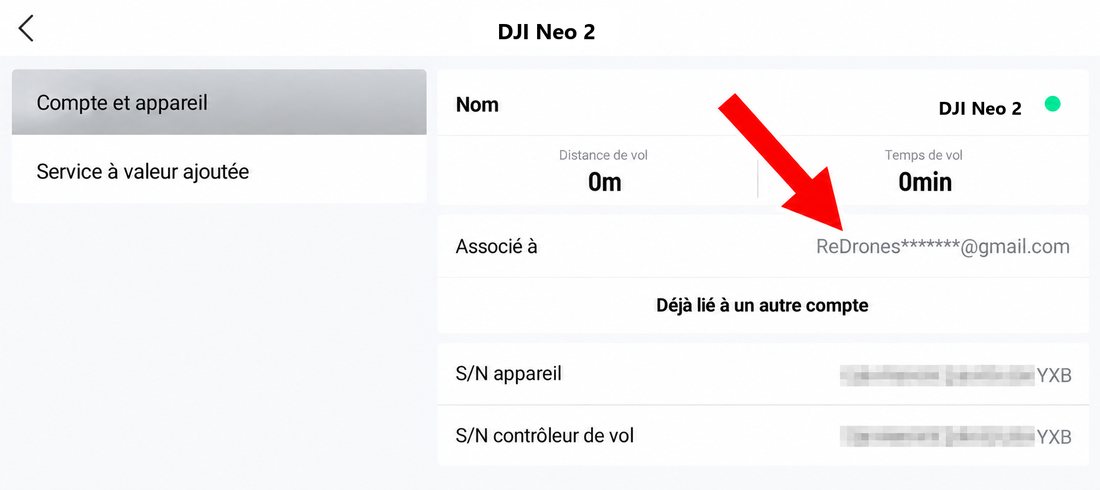
Before buying or selling a used DJI drone, it is important to check whether it is still linked to its owner's DJI account.
A drone that is still tied to the previous owner's account can cause real trouble for the buyer.
The check takes four screens, and the steps are the same everywhere: on the built-in screen of a DJI RC 2, or in the DJI Fly app on your phone if you fly with an RC-N1, an RC-N2 or an RC-N3.
Step 1 — Make sure you are connected to the internet
Turn on your controller, or open DJI Fly on your phone, depending on the model you use.
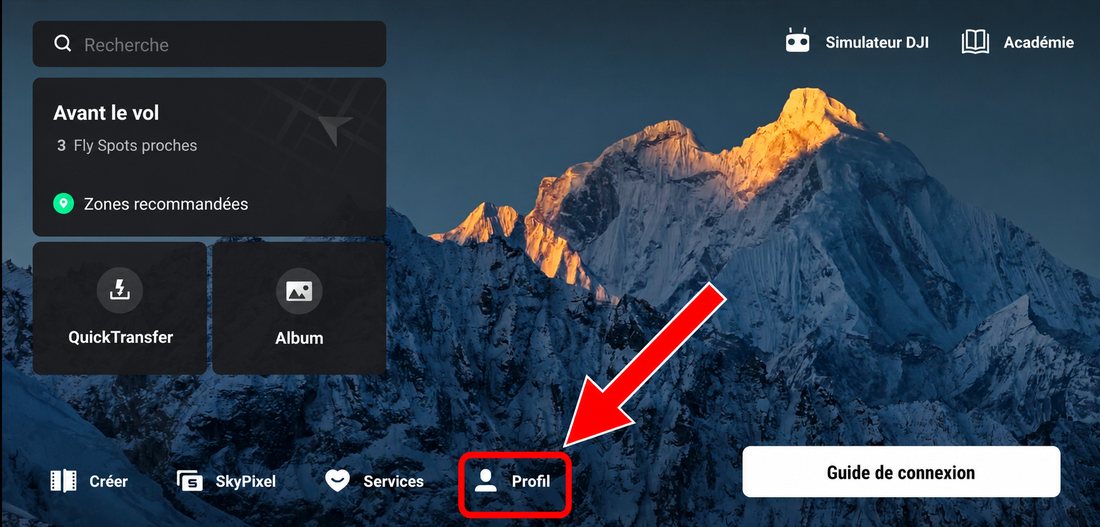
Once you are online, tap Profile at the bottom of the home screen.
Step 2 — Check that you are signed in to a DJI account
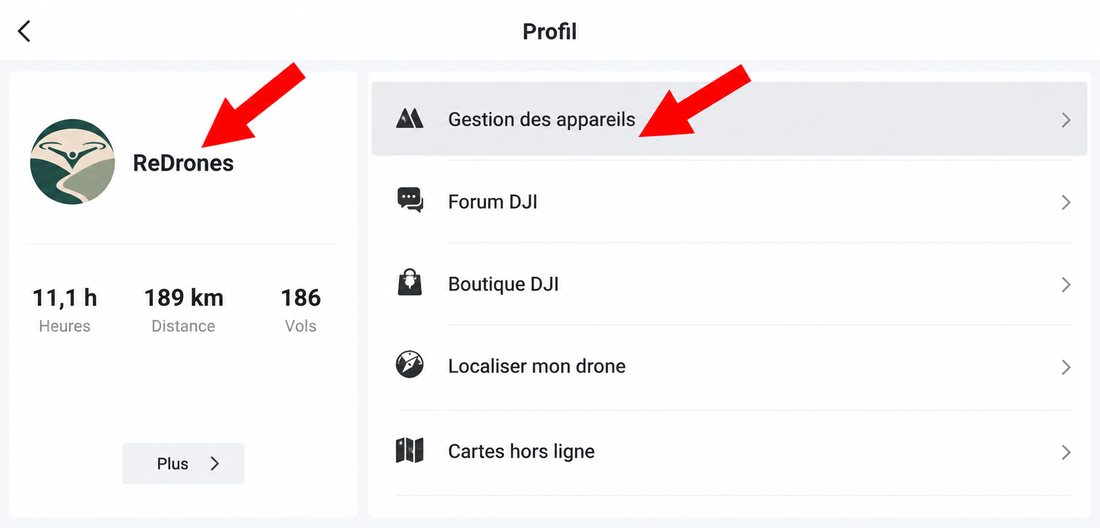
The check also requires being signed in to a DJI account. After opening Profile, look at the left-hand column: the account name or nickname appears there, under its profile picture.
Then select Device Management.
Step 3 — Select the drone you want to check
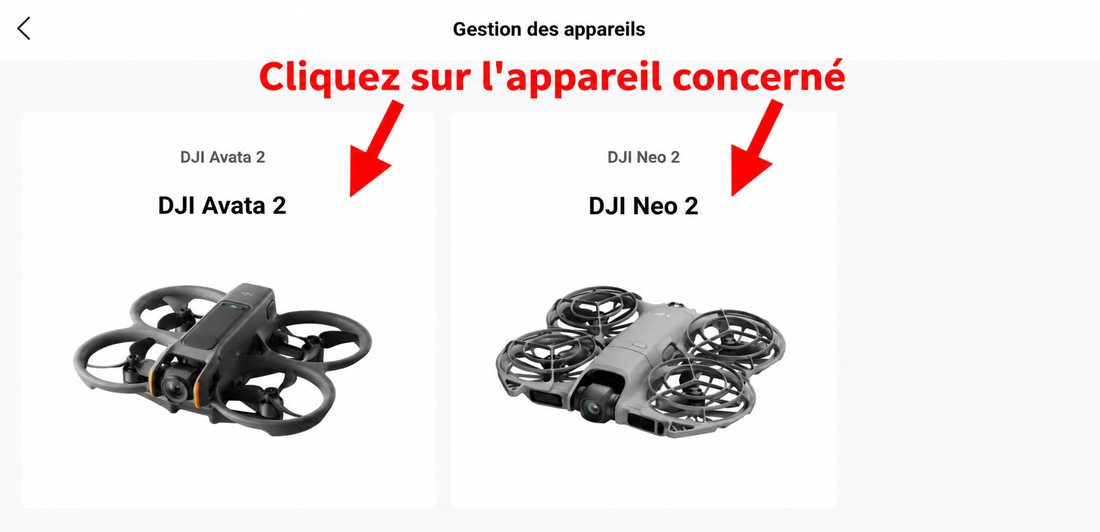
The Device Management page lists the drones attached to your account. Select the one you want to check.
Step 4 — Check the account the drone is linked to
Once the drone is selected, open the Account and Device section if it is not already showing, then look at the Linked to line.
That line shows which account the drone is linked to. Part of the e-mail address is hidden for privacy.
What does « Already linked to another account » mean?
If that notice appears, the drone is still linked to another DJI account.
The ReDrones tip
When buying in person, run this check with the seller, before you leave with the drone. With a DJI RC 2, plan for internet access on the spot: a Wi-Fi network, or your phone's hotspot. With an RC-N1, RC-N2 or RC-N3, your phone takes care of it.
Do not stop at checking that the drone powers on, takes off and flies: check its linking status too. That is what prevents discovering, after the sale, that the aircraft still belongs to its previous owner's account.
Check before you leave
- The DJI RC 2 is connected to the internet (not needed with an RC-N1, RC-N2 or RC-N3)
- A DJI account is signed in
- The drone shows up under « Device Management »
- The « Linked to » line does not say « Already linked to another account »
- The seller unlinked the aircraft in front of you if needed